
This guide will walk you through setting up Outlook Express to work with UseNetServer news servers. If you haven’t already signed up for Usenet access then take a look at UNS. They offer days of binary retention, connections, SSL encryption and servers in the US and Europe. NGR visitors receive a special price of $10/mo. or $95/yr.
Download Outlook Express
No need to download Outlook Express as it comes standard with the Windows operating system. If you run Microsoft Office you could also use Outlook.
Install Outlook Express
Outlook Express is already installed. Simply click on Start → Programs → Outlook Express to start the program.
Configure Outlook Express
Figure 1 – Outlook Express Menu
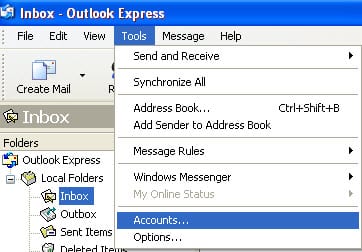
Click on the Tools → Accounts
Figure 2 – Add News Account

Select the News tab and then Add → News
Figure 3 – Display Name
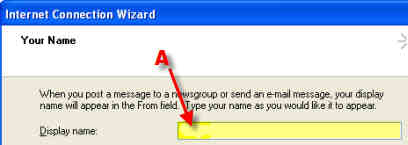
A – Enter anything you want in the display name.
Figure 4 -Email Address
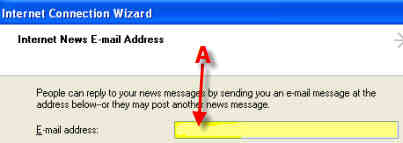
A – Enter in the email address to be used with this account.
Figure 5 -Outlook Express News Server Information
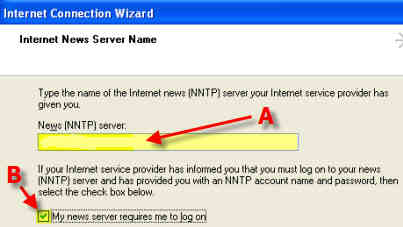
A – Enter news.usenetserver.com, secure.usenetserver.com (SSL) or text.usenetserver.com (text-only) into the News (NNTP) server field
B – Check “My news server requires me to log on“.
Figure 6 – Account Name and Password
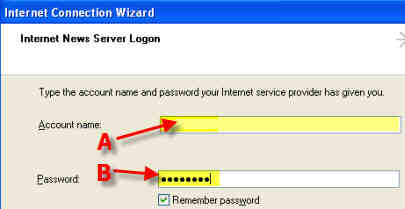
A – Enter Username (provided in email)
B – Enter Password (provided in email)
Figure 7 – Select Account Properties
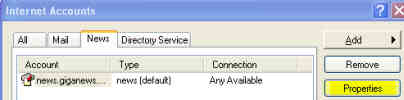
Next you want to click on the Properties button.
Figure 8 – Select NNTP Port (SSL)
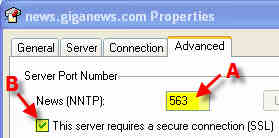
A – Port: use port 443, 563 or 8080 for secure or port 119, 23, 25, 3128, 8000 or 9000 for standard connections.
B – Check “This server requires a secure connection (SSL)” for secure access.
Outlook Express is now configured for UseNetServer. Enjoy!