
This guide will walk you through setting up Thunderbird to work with UseNetServer news servers. If you haven’t already signed up for Usenet access then take a look at UNS. They offer days of binary retention, connections, SSL encryption and servers in the US and Europe. NGR visitors receive a special price of $10/mo. or $95/yr.
Download Thunderbird
Visit the Thunderbird homepage to download the latest version of the newsreader client.
Install Thunderbird
Follow these screenshots to guide you through the installation.
Figure 1 – Thunderbird Setup Type
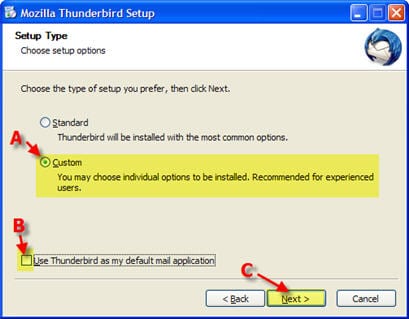
A – Select “Custom”
B – Check “Use Thunderbird as mt default mail application” if desired
C – Click “Next”
Figure 2 – Thunderbird Mail Account Setup
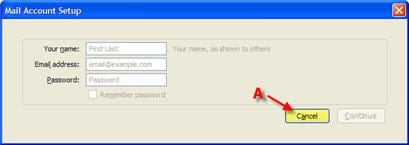
A – Click “Cancel”
Figure 3 -Thunderbird System Integration
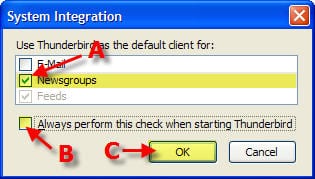
A – Check “Newsgroups”
B – Check “Always perform this check when starting Thunderbird”
C – Click “OK”
Figure 4 -Thunderbird Tools –> Account Settings
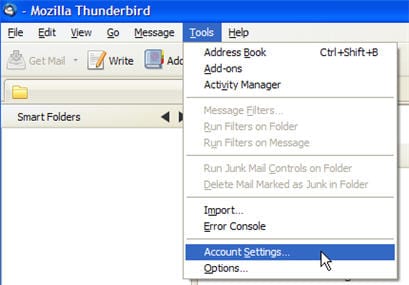
Click “Tools” and then “Account Settings”
Figure 5 -Thunderbird Account Actions
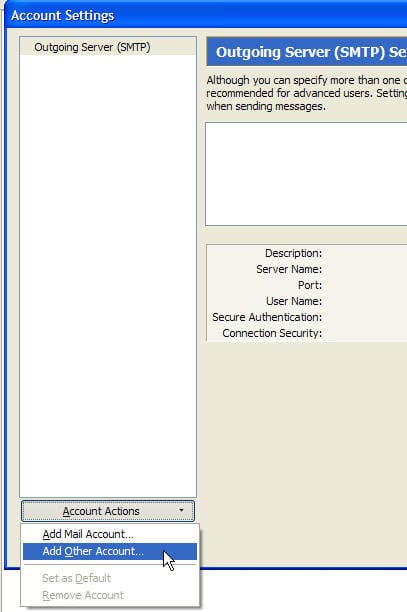
Click “Account Actions” and then “Add Other Account”
Figure 6 -Thunderbird New Account Setup
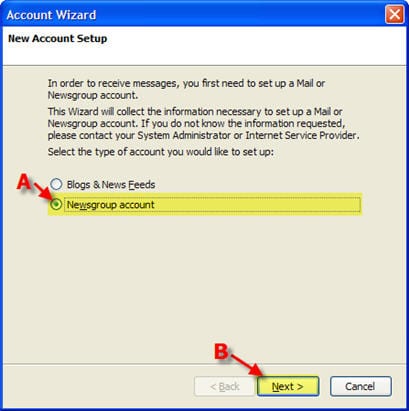
A – Select “Newsgroup Account”
B – Click “Next”
Figure 7 -Thunderbird Identity
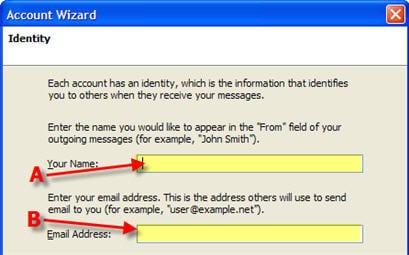
A – Enter your name
B – Enter your email address
Figure 8 -Thunderbird Newsgroup Server
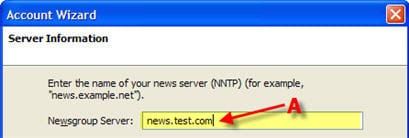
A – Newsgroup Server: news.usenetserver.com, secure.usenetserver.com (SSL) or text.usenetserver.com (text-only)
Figure 9 -Thunderbird Account Name
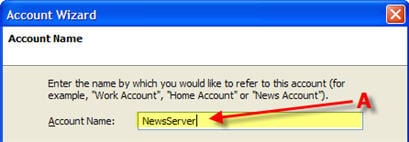
A – Account Name: enter anything you want
After returning to the main Thunderbird you want to click on “View settings for this account”.
Figure 10 – Thunderbird Installation Complete
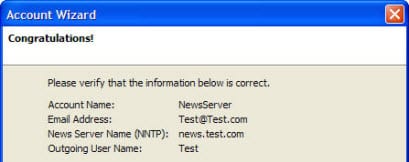
Configure Thunderbird for UseNetServer
Figure 11 -Thunderbird Password
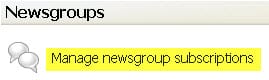
Once Thunderbird loads you will want to click on Manage newsgroup subscriptions
Figure 12 – Thunderbird Username
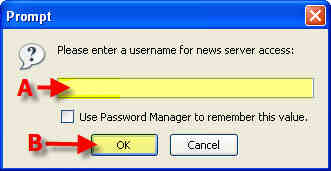
A – Enter Username (provided in email)
B – Click “OK”
Figure 13 – Thunderbird Password
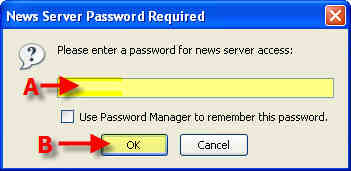
A – Enter Password (provided in email)
B – Click “OK”
Figure 14 – Thunderbird Password
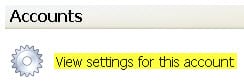
Click “View settings for this account”
Figure 15 – Thunderbird News Server Settings
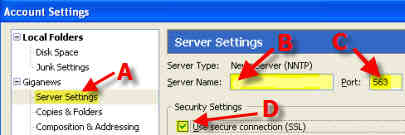
The account settings screen includes everything you need to finish setting up Thunderbird.
A – First click on Server Settings to the left.
B – Server Name: news.usenetserver.com, secure.usenetserver.com (SSL) or text.usenetserver.com (text-only)
C – Port: use port 443, 563 or 8080 for secure or port 119, 23, 25, 3128, 8000 or 9000 for standard connections.
D – Check “Use secure connection (SSL)” for secure access.
Thunderbird is now configured for UseNetServer. Enjoy!